Kubernetes offers an RBAC system to lock down what Kubernetes objects your workloads can create and access. The Kubernetes agent supports setting a single service account for your script pods during installation, but this does not fit all use cases.
If you are sharing a cluster between teams and/or environments, granular Kubernetes agent permissions can help lock down your cluster without creating a Kubernetes agent per permission set.
Granular Kubernetes agent permissions works by having the cluster admin create objects on the target cluster that create links between Octopus scope and Kubernetes permissions.
How does it work?
For each namespace you are deploying to in your Kubernetes cluster, you’ll create a WorkloadServiceAccount that specifies which spaces, projects, environments and/or tenants are allowed to act under a set of permissions.
When you don’t create a WorkloadServiceAccount with a matching scope for your deployment, the default script pod permissions configured during installation of the Kubernetes agent will be used instead.
Once you’ve added your WorkloadServiceAccounts, Octopus will handle assigning permissions transparently.
Who should use this feature
Use granular permissions when teams or environments share a cluster but need different levels of access. There is a little more setup: someone needs to maintain the permission definitions as applications and deployment processes change.
How do I use it?
Granular permissions uses a Kubernetes controller and custom resources to configure Kubernetes RBAC per deployment.
Installing Octopus Permissions Controller
Install Octopus Permissions Controller with Helm, much like the Kubernetes agent. The chart includes the controller and its custom resource definitions (CRDs).
Install one controller per cluster, shared by the agents and workers on that cluster.
The following command installs the controller with automatic namespace discovery:
helm upgrade --install --atomic \
--create-namespace --namespace octopus-permissions-controller-system \
--reset-then-reuse-values \
octopus-permissions-controller \
oci://registry-1.docker.io/octopusdeploy/octopus-permissions-controller-chartPre-requisites:
- Kubernetes agent v2.28.1+
- Cert Manager
Choosing agent and worker namespaces
The controller creates service accounts for each combination of permissions in your agent and worker namespaces. Only allow it to create these accounts in trusted namespaces you control.
Default behavior
By default, the controller finds Deployments labeled app, then filters their namespaces with ^octopus-(agent|worker)-. This matches names starting with octopus-agent- or octopus-worker-, such as octopus-agent-prod, but not my-octopus-agent-prod or octopus-agent.
This matches Kubernetes agents and workers installed with the default namespace settings.
Provide a list of target namespaces (recommended)
For security, we recommend providing a fixed list of agent and worker namespaces where the controller can create service accounts. Use a comma-separated string with no spaces:
manager:
  envOverrides:
TARGET_NAMESPACES: "team-deploy-agent,shared-build-worker"This list replaces automatic discovery and bypasses the regex and Deployment label requirement. Include every agent or worker namespace you want to manage. Set TARGET_NAMESPACES back to "" to restore discovery.
Target namespaces with regex
To use automatic discovery with a different naming convention, set TARGET_NAMESPACE_REGEX. It uses Go regex syntax. For example, this values file matches namespaces such as platform-agent-prod and platform-worker-build:
manager:
  envOverrides:
    TARGET_NAMESPACES: ""
TARGET_NAMESPACE_REGEX: '^platform-(agent|worker)-.+$'Apply either example to the permissions controller’s Helm release, not the agent or worker release. See the chart values for more settings.
Workload Service Accounts
WorkloadServiceAccounts can be created as you would any other Kubernetes object. Your WorkloadServiceAccount should be created in the namespace you will be deploying your application resources into.
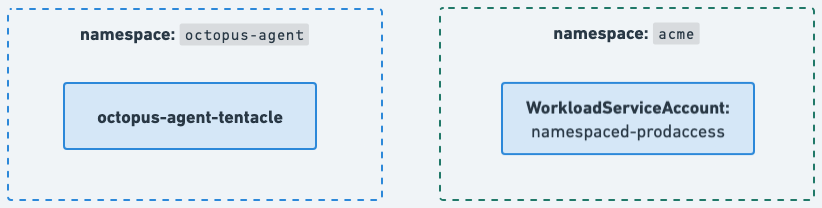
Roles and RoleBindings will be created in the application namespace by Octopus Permissions Controller. A linked ServiceAccount will be created in the Kubernetes agent namespace.
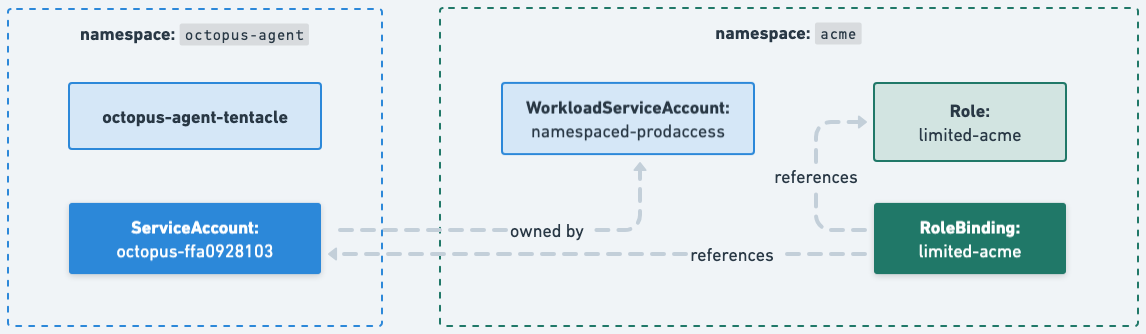
When a deployment that matches the scope configured on the WorkloadServiceAccount starts, the created ServiceAccount will automatically be assigned.
Creating Workload Service Accounts
The WorkloadServiceAccount spec consists of two main parts; the scope and the permission set.
apiVersion: agent.octopus.com/v1beta1
kind: WorkloadServiceAccount
metadata:
  name: sample-wsa
  namespace: your-application-namespace
spec:
  scope:
    spaces: [default]
    projects: [guestbook]
    environments: [dev-a,dev-b]
  permissions:
    permissions:
      - verbs: ["*"]
        apiGroups: ["*"]
        resources: ["*"]
    roles:
      - apiGroup: rbac.authorization.k8s.io/v1
        kind: Role
name: your-existing-roleFor more examples and common scenarios, have a look at the Octopus Permissions Controller repo
Scope
Each WorkloadServiceAccount is assigned a scope with the following fields
- Spaces
- Projects
- Environments
- Tenants
- Steps
These fields are matched against the corresponding slug within Octopus.
Each field adheres to the following rules to match:
- A field that is omitted entirely is treated as a wildcard, it will match any value
- A field with one or more values will match exactly to one or more slugs
- Each value must be a complete slug, partial matches are not supported
Each WorkloadServiceAccount must have at least one non-empty field. You cannot have a WorkloadServiceAccount that matches every scope.
Deleting an orphaned Kubernetes object is not run by a deployment step, so it uses the reserved step slug octopus-kubernetes-resource-deletion. Use that slug in the steps scope to grant the delete permissions those cleanups need without widening what your deployments can do.
Permissions
The permissions applied for each scope can be configured a couple of ways:
- Directly reference permissions on the
WorkloadServiceAccount - Reference existing
RolesorClusterRoles
Cluster Workload Service Accounts
When non-namespaced scoped permissions are required, ClusterWorkloadServiceAccount are available to configure your permissions. These work the same way as WorkloadServiceAccounts.
Combining WSAs
Not all permissions exist in a vacuum and we don’t want to repeat ourselves too much when creating WorkloadServiceAccount definitions. To help compose your desired permissions, WorkloadServiceAccounts are built additively.
When a workload with a particular scope matches multiple WorkloadServiceAccount scopes, the permissions are combined and both applied to a single ServiceAccount.
Running deployments
Run deployments as usual. The controller assigns a service account with the combined permissions from all WorkloadServiceAccounts whose scopes match the deployment.
If there are no WorkloadServiceAccounts that match the deployments scope, the deployment will use the default permissions configured for script pods when you installed the Kubernetes agent.
We recommend restricting the default permissions to be completely empty so that deployments without matching scopes will fail quickly.
Octopus Permissions Controller
How does it work under the covers
Octopus Permissions Controller is in charge of several duties:
- Managing the lifecycle of
WSAs - Creating roles, role bindings and service accounts as defined by your
WSAs - Applying service accounts to your Kubernetes agent script pods that run your deployment workloads
ServiceAccounts are generated ahead of time by calculating the minimum number of unique permissions combinations that are defined by your WorkloadServiceAccounts.
At the time of creation of a new script pod, Octopus Permissions Controller acts as a mutating admission webhook controller to match the scope annotated on the script pod with a matching ServiceAccount (if any).
For some cases (eg. health checks), the Kubernetes agent runs a workload without a specific scope and so no ServiceAccount is applied to the script pod by Octopus Permissions Controller.
Interested in more detail? Check out the Octopus Permissions Controller repository.
Upgrades
Because this component is shared between Kubernetes agents on your cluster, we have opted to separate its upgrade cycle from a single Kubernetes agent.
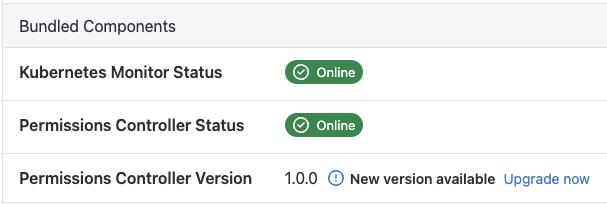
As we deploy Octopus Permissions Controller as a Helm chart, you can use any method you wish to install new versions. Notification of new versions will be available in the connectivity page of your Kubernetes agent, as well as a command to help upgrade your existing installation.
Installing on a cluster with existing agents
Octopus Permissions Controller can be installed on a cluster with existing Kubernetes agents and it will immediately start applying permissions from matching WorkloadServiceAccounts.
Review each agent’s default script pod permissions before enabling granular permissions. A deployment with no matching WorkloadServiceAccount still uses those defaults, so broad defaults can hide a scope mistake.
For a basic Kubernetes agent installation, the following command disables the default script pod ClusterRole. If you supplied your own service account or role bindings, review those separately; this setting does not remove permissions you granted outside the chart.
helm upgrade --install --atomic \
--create-namespace --namespace ${agent_namespace} \
--reset-then-reuse-values \
--set scriptPods.serviceAccount.clusterRole.enabled="false" \
${release_name} \
oci://registry-1.docker.io/octopusdeploy/kubernetes-agentRemoving Octopus Permissions Controller
If the Octopus Permissions Controller is no longer desired, it can be removed in two steps.
- Uninstall the Helm chart from your cluster. If you installed the permissions controller with the default parameters the commands below will do this.
helm uninstall --namespace octopus-permissions-controller-system octopus-permissions-controller
kubectl delete namespace octopus-permissions-controller-system- Update your Kubernetes agent default permissions if required. This command below will allow for unrestricted deployments.
helm upgrade --install --atomic \
--create-namespace --namespace ${agent_namespace} \
--reset-then-reuse-values \
--set scriptPods.serviceAccount.clusterRole.enabled="true" \
--set scriptPods.serviceAccount.clusterRole.rules=null \
${release_name} \
oci://registry-1.docker.io/octopusdeploy/kubernetes-agentTroubleshooting
Is Octopus Permissions Controller operational?
Octopus Permissions Controller will report it’s status via the health check each of the Kubernetes agents on the same cluster performs.
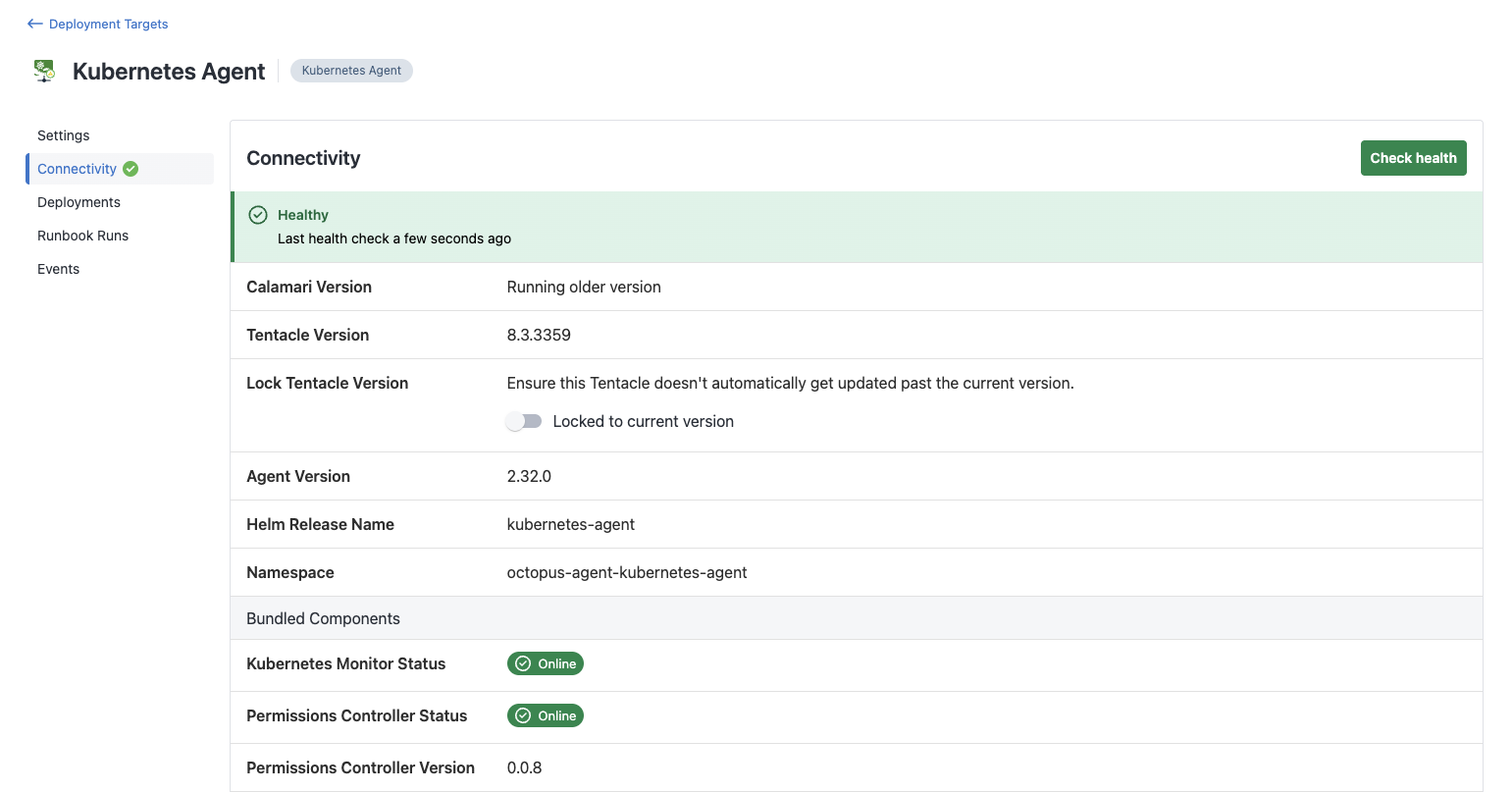
If the permissions controller is reported as not found, try running a new health check and monitor the Octopus Permissions Controller pod logs in Kubernetes to confirm that the script pod is being discovered.
Deployment fails during verification
When using deployment verification with granular permissions, your deployment may fail during the verification phase even though the resources were created successfully. This occurs because the script pod that performs the deployment also needs to read the deployed resources to verify they reached the desired state.
To resolve this issue, update your WorkloadServiceAccount to include read permissions:
- The
getverb for parent resources (such as Deployments) - The
listverb for child resources (such as Pods and ReplicaSets)
Validating assigned permissions
While developing your deployment processes and configuring WorkloadServiceAccounts, it can be easy to accidentally create an unexpected set of permissions through multiple WorkloadServiceAccount interactions.
If you have access to the Kubernetes cluster, we recommend directly querying the service account assigned to the script pod during your deployment. For any permissions issues, you will find the service account name output in verbose logs in the Octopus deployment task.
If you do not have access to query the Kubernetes cluster, we recommend you make use of the kubectl can-i command by adding a “Run a kubectl script” step within your deployment process.
To list all the permissions you have within a particular namespace, add kubectl auth can-i --list -n <your-namespace> to your script.
Version notes
- The reserved step slug
octopus-kubernetes-resource-deletion, used when deleting orphaned Kubernetes objects, is available from Octopus Server 2026.3.13597.